Need to merge, split, compress or convert a PDF without installing software? Our free PDF tools online bring ten of the most useful PDF and document tools together on one page. Switch between them with a single click: merge PDF, split PDF, compress PDF, JPG to PDF, PDF to JPG, Word to PDF, PDF to Word, PDF unlocker, page extractor and text extractor. There is no sign-up and no watermark, and your files never leave your device. Table of contents
- What are PDF tools online?
- The 10 PDF tools in DocKit
- How to use the PDF tools in 4 steps
- Why use DocKit?
- What to know before you start
- Tips for better PDF results
- Who uses these PDF tools?
- Frequently asked questions
What are PDF tools online?
PDF tools online are web pages that let you change a PDF file straight from your browser. DocKit is one of them, and it works differently from most. Instead of uploading your file to a company server, it opens and edits the file on your own computer, phone or tablet, inside the browser. That makes it fast, and it keeps contracts, ID cards, bank statements and other private documents private.
The 10 PDF tools in DocKit
Merge PDF
Combine two or more PDF files into one document. Add your files, put them in the right order with the arrows, and press merge. Useful for joining a cover letter, CV and certificates into one application. Try the merge PDF tool.
Split PDF
Break a PDF into one file per page, into parts of several pages, or delete the pages you do not need. Split files are saved together as a ZIP. Try the split PDF tool.
Compress PDF
Make a large PDF smaller so it fits an email or an upload limit. Choose light, balanced or strong compression and see the before and after sizes. Try the compress PDF tool.
JPG to PDF
Turn JPG, PNG and WebP pictures into one PDF. Set the page size and margins, and put the images in the order you want. Try the JPG to PDF tool.
PDF to JPG
Save every page of a PDF as a JPG or PNG picture at normal, high or very high resolution. Try the PDF to JPG tool.
Word to PDF
Convert a Word (.docx) file to PDF. Text, headings, bold and italic, lists, tables and pictures are kept in a simple layout. Try the Word to PDF tool.
PDF to Word
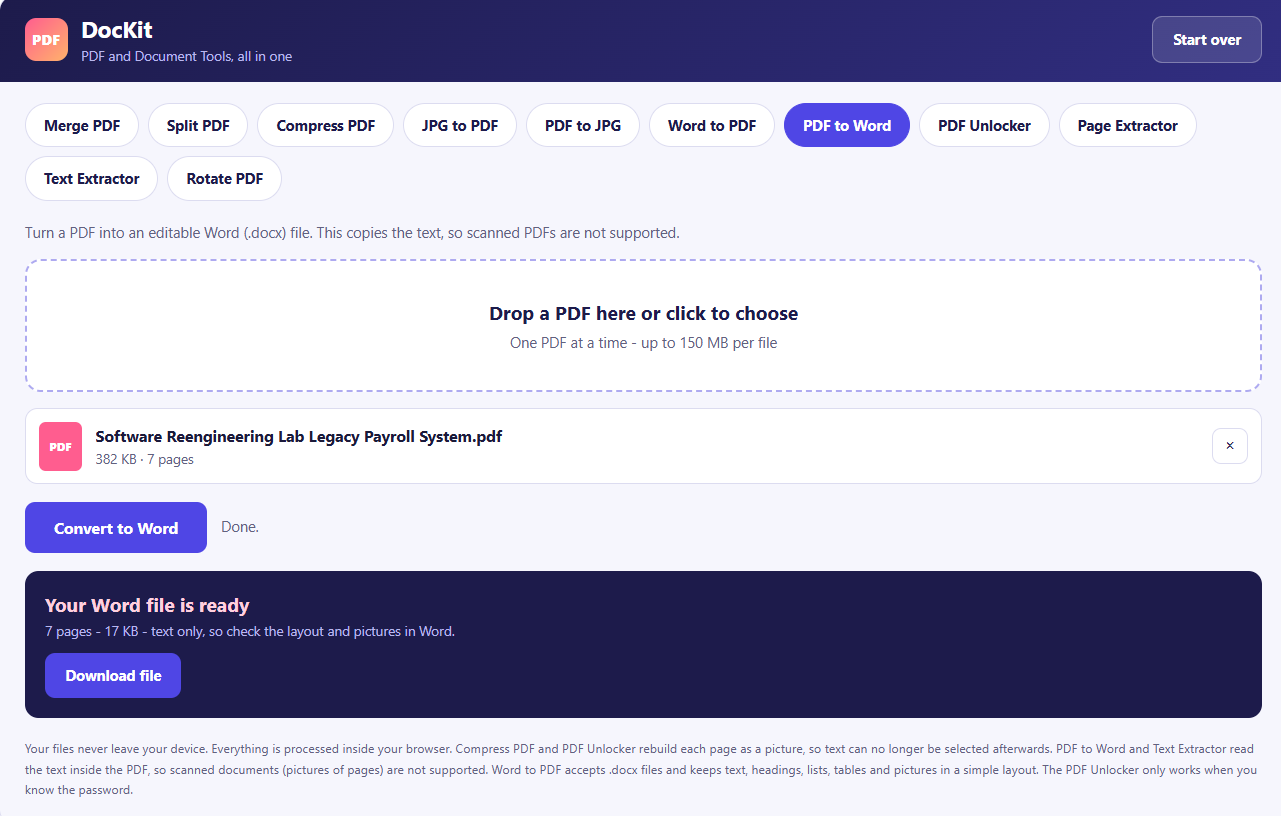
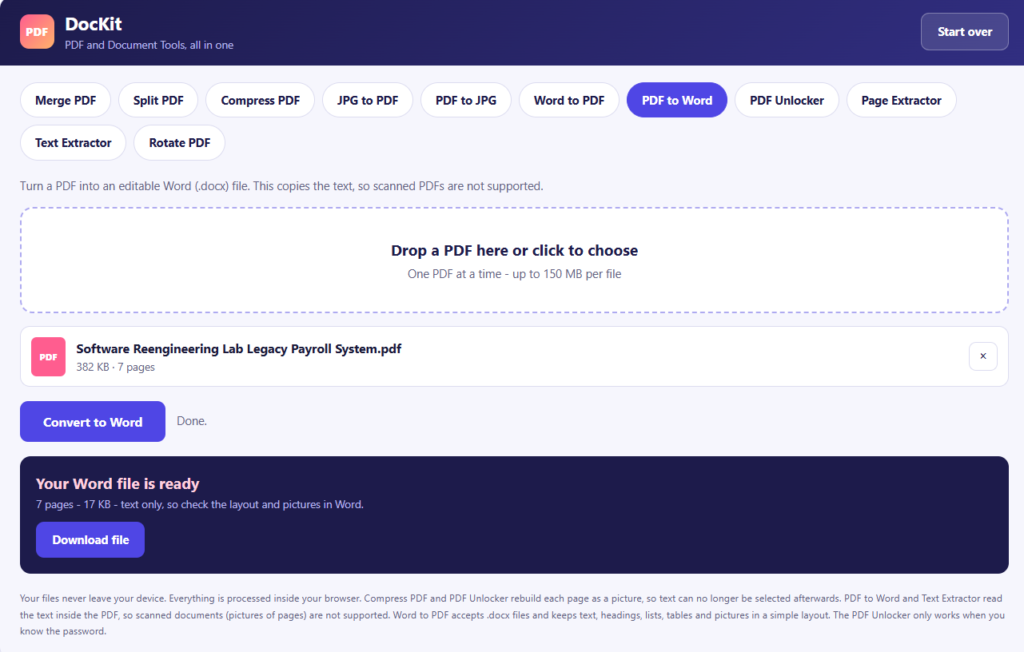
Turn a PDF into an editable Word file. The tool copies the text and rebuilds headings and paragraphs, so you can edit it in Word. Try the PDF to Word tool.
PDF Unlocker
Remove the password or restrictions from a PDF you own. If the file asks for a password, you need to type the correct one. Try the PDF unlocker.
Page Extractor
Choose the pages you want, such as 1-3, 5, 8-10, and save them as a new PDF or as separate files. Try the page extractor.
Text Extractor
Copy all the text out of a PDF and save it as a plain text file, or copy it straight to your clipboard. Try the text extractor.
The tool also includes Rotate PDF, which turns all pages or chosen pages by 90, 180 or 270 degrees.
How to use the PDF tools in 4 steps
- Pick a tool. Click the tab you need, such as Merge PDF or Compress PDF.
- Add your files. Drop them into the box or click to choose them from your device.
- Set your options. Choose pages, quality or order if the tool has options.
- Download your result. Save the new file, or a ZIP file if the tool made several files.
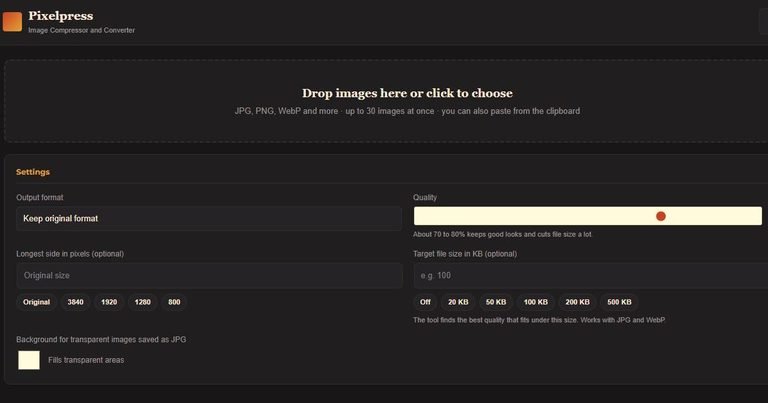
Pictures for your PDF too large? Shrink them first with our image compressor online, then build the PDF with the JPG to PDF tool.
Why use DocKit?
- Private by design: your files are processed inside your browser and are never uploaded to a server.
- Free with no sign-up: no account, no watermark and no daily limit.
- Ten tools in one place: no need to search for a different website for every job.
- Works on any device: use it on a phone, tablet or computer.
- Fast: there is no upload or download wait for your source file, so most jobs finish in seconds.
The tool is built on open technology. It uses pdf-lib to create and edit PDF files and Mozilla PDF.js to read and display them. To learn more about the PDF format itself, visit the PDF Association.
What to know before you start
We believe in being clear about what each tool can and cannot do:
- Scanned PDFs: PDF to Word and the Text Extractor read the text inside a PDF. A scan is only a picture of a page, so there is no text to copy. These files need OCR software, which is not included.
- Compress PDF and PDF Unlocker: these rebuild each page as a picture, so you get a smaller or unlocked file, but the text can no longer be selected.
- PDF to Word: it copies the text only. Pictures and complex layouts such as columns are not kept, so check the result in Word.
- Word to PDF: it accepts .docx files and uses a simple layout with standard Latin fonts. Characters outside that set, such as Urdu or Arabic, are replaced with a question mark.
- PDF Unlocker: it works only if you know the password. It cannot guess or crack a password you do not have.
- File size: each file can be up to 150 MB. Very large files may be slow on older phones.
Tips for better PDF results
- Keep your original. Save the uncompressed file before you compress or unlock it.
- Check the order before merging. Use the arrows to put files in the right order, then merge.
- Use the Balanced level to compress. It cuts size a lot while keeping pages readable. Switch to Strong only if you must meet a tight limit.
- Choose JPG for photos and PNG for text pages when you convert a PDF to pictures.
- Use a high resolution for printing. Pick High or Very high when you convert pages to images.
- Look at the result. Open the new file and scroll through it before you send it.
Who uses these PDF tools?
- Students: merge notes, extract chapters and convert assignments from Word to PDF.
- Job seekers: combine a CV, cover letter and certificates, and compress files to meet portal limits.
- Office workers: split long reports, rotate scanned pages and pull text from contracts.
- Small business owners: turn invoices and receipts into one PDF, and convert pictures of documents into PDF files.
- Anyone sending documents online: reduce file size so emails and uploads go through.
Need a QR code for your PDF or portfolio? Make one with our QR Code Generator. Have a blurry logo or photo to include? Sharpen it first with our HD Image Converter.
Frequently asked questions
Are these PDF tools really free?
Yes. All ten tools are completely free, with no sign-up, no watermark and no limit on how many files you process.
Are my files uploaded to a server?
No. Every tool works inside your browser, so your files stay on your device.
How do I merge PDF files?
Open the Merge PDF tab, add two or more PDFs, put them in order with the arrows and press Merge PDFs. Then download the combined file.
How do I compress a PDF to make it smaller?
Open the Compress PDF tab, add your file, choose Light, Balanced or Strong and press Compress PDF. The tool shows how much smaller the file is. Note that text can no longer be selected in the compressed copy.
Can I convert PDF to Word?
Yes, if the PDF contains real text. The tool copies the text into an editable Word file. Pictures and complex layouts are not kept, and scanned PDFs are not supported.
Can I convert Word to PDF?
Yes, for .docx files. Text, headings, lists, tables and pictures are kept in a simple layout. Non-Latin characters such as Urdu are not supported yet.
Can the PDF unlocker remove a password I forgot?
No. It only works when you know the password, or when the PDF has restrictions but opens without a password. It cannot crack or guess passwords.
Why does the text extractor say no text was found?
The PDF is probably a scan, which is a picture of a page with no real text inside. You need OCR software to read text from scanned pages.
Does it work on iPhone and Android?
Yes. It works in any modern mobile browser. Very large files may be slower on older phones.
Start using the PDF tools online now
Pick a tool, add your file and get your result in seconds with our free PDF tools online. You may also like our other free tools: the Image Compressor, the QR Code Generator, the HD Image Converter and the Pakistan Salary Tax Calculator.