
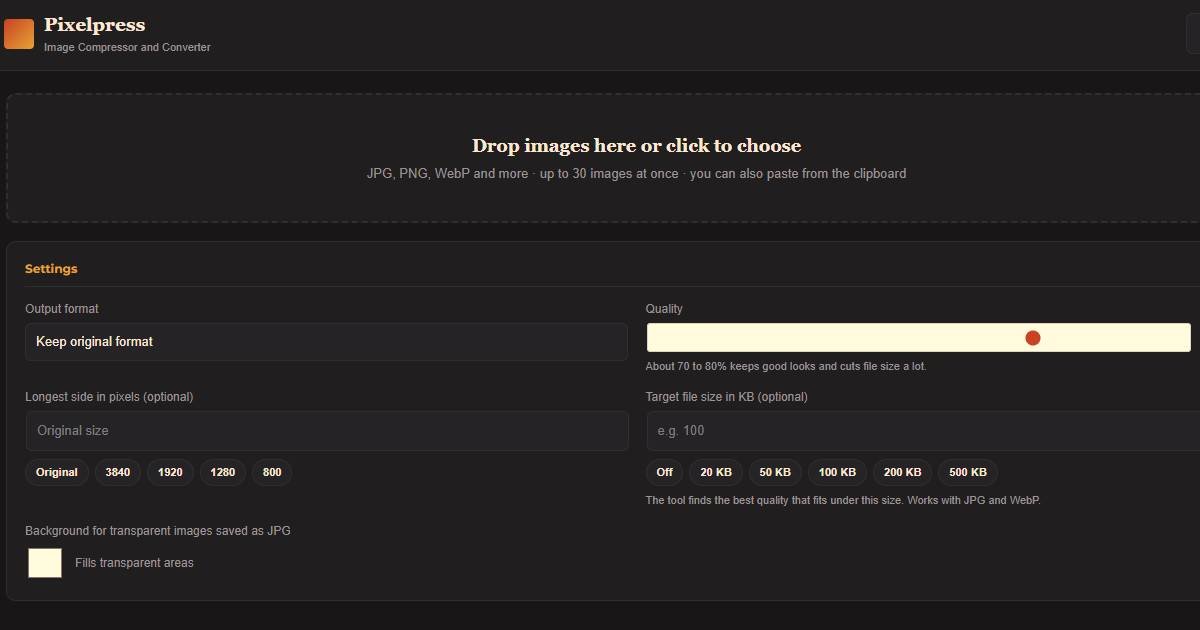
Need a smaller photo for a form, an email or your website? Our free image compressor online shrinks JPG, PNG and WebP files in seconds. Drop in your pictures, choose a quality or a target size such as 100 KB, and download the result. Your images never leave your device, there is no sign-up, and there is no limit on how often you use it.
Settings
What is the image compressor online?
Pixelpress is a free image compressor and converter that runs inside your web browser. It reduces the file size of your pictures by lowering the data used to store them, and it can also change the format, for example from PNG to WebP or from WebP to JPG. Because everything happens on your own device, your photos are not uploaded to any server. That makes this image compressor online fast, and it keeps private pictures private.
Features of our image compressor online
Batch compression: compress up to 30 images at once and download them together as a ZIP file.
Three formats: convert between JPG, PNG and WebP, or keep the original format.
Quality control: a slider from 10 to 100 percent lets you balance size and sharpness.
Target file size: type the size you need, such as 50 KB or 200 KB, and the tool finds the best quality that fits.
Resize option: set the longest side in pixels to make large photos smaller still.
Before and after sizes: see exactly how much space you saved for every image.
Smart protection: if compressing would make a file larger, the tool keeps your original instead.
Privacy first: no uploads, no account, and location details such as GPS data are removed from the new files.
Works everywhere: use it on a phone, tablet or computer, with drag and drop or paste from the clipboard.
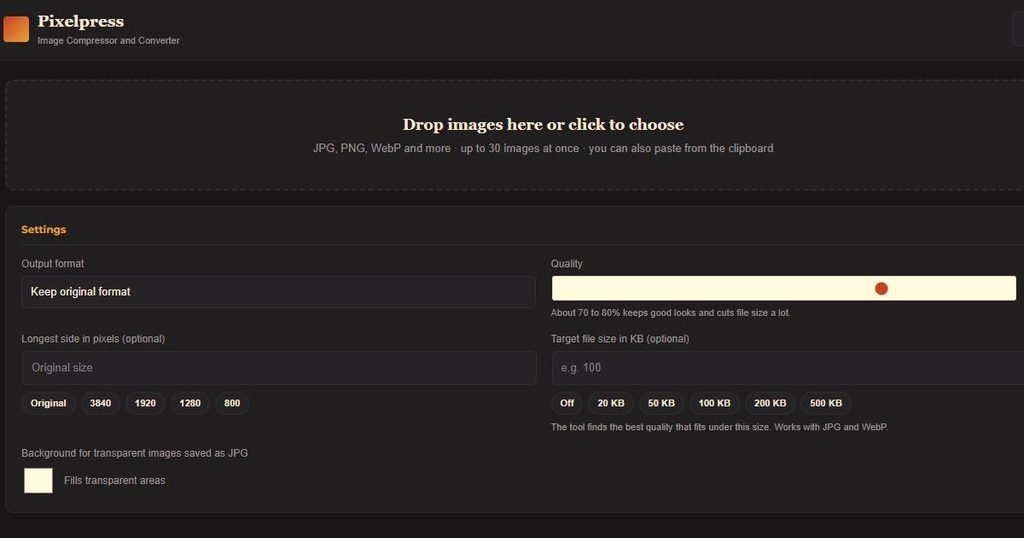
How to compress an image in 4 steps
- Add your images. Drop them into the box, click to choose files, or paste a picture from your clipboard.
- Choose your settings. Pick an output format and a quality in the image compressor online. For most photos, 70 to 80 percent looks almost the same as the original and is much smaller.
- Optional: set a size or a target. Enter the longest side in pixels, or the file size you need in KB.
- Download. Save each image on its own, or press Download all to get a ZIP file.
If your picture is small or blurry to begin with, improve it first with our HD Image Converter, then compress it with our image compressor online for the final file.
Compress an image to a specific size (20 KB, 50 KB, 100 KB, 200 KB)
Many websites ask for a picture under a set size. Job applications, visa and passport portals, university forms, ID uploads and online exams often set a limit such as 20 KB, 50 KB, 100 KB or 200 KB. Type the number into the target size box and the image compressor online works out the highest quality that stays under your limit. If the picture is too detailed to reach the target by quality alone, the tool also reduces its dimensions step by step until it fits.
Compress image to 20KB
Compress image to 50KB
Compress image to 100KB
Compress image to 200KB
JPG vs PNG vs WebP: which format should you choose?
| Format | Best for | Compression | Transparency |
|---|---|---|---|
| JPG | Photos and pictures with many colours | Lossy, small files | No |
| PNG | Logos, screenshots, text and sharp graphics | Lossless, larger files | Yes |
| WebP | Websites and almost everything else | Lossy or lossless, usually the smallest | Yes |
WebP files are often about a quarter to a third smaller than JPG files at similar quality, according to Google’s WebP documentation, and all modern browsers can show them. You can confirm current browser support on Can I use. If you are not sure, choose WebP for your website and JPG when a form or an app asks for it. Read our full guide to JPG vs PNG vs WebP for more detail, or see the MDN guide to image file types for the technical side.
Tips for the best quality with an image compressor online
Start with the original. Compressing a picture that was already compressed several times loses more detail each time.
Use quality 70 to 80 percent for photos. The difference is hard to see, but the file is much smaller.
Resize before you compress. A 6000 pixel photo shown at 1200 pixels wastes data. Set the longest side to the size you actually need.
Choose PNG only when you need it. It is lossless, so the file stays large. Use WebP or JPG for photos.
Check the result. Look at the thumbnail and the sizes shown before you download.
Keep your original file. Store the uncompressed version safely in case you need it later.
Why compress images?
Faster websites: images are often the heaviest part of a page. Smaller files from an image compressor online load faster, which helps visitors and can improve your search ranking. Our guide on speeding up WordPress images shows how to apply this on your own site, and you can test your pages for free with Google PageSpeed Insights.
Easier sharing: compressed pictures fit email attachment limits and send faster over messaging apps.
Save storage: smaller files take less space on your phone, computer and cloud account.
Meet upload limits: forms and portals that cap file size will accept your picture.
Save mobile data: smaller images use less data for you and for your visitors.
Need to put several pictures into one document? Build it with our /folio-pdf-composer/. Want to link a printed poster to your website? Make a code with our QR Code Generator. Tracking your health goals too? Try our BMI Calculator.
Frequently asked questions
Is this image compressor online really free?
Yes. It is completely free, with no sign-up, no watermark and no limit on how many images you compress.
Are my images uploaded to a server?
No. All compression happens in your browser, so your pictures never leave your device.
Does compressing reduce image quality?
Lossy compression for JPG and WebP removes some detail, but at a quality of 70 to 80 percent the change is usually hard to notice. PNG is lossless, so its quality does not change.
How do I compress an image to 100 KB?
Add your image to the image compressor online, type 100 in the target file size box, and choose JPG or WebP. The tool finds the best quality that fits under 100 KB. If it still cannot fit, it reduces the picture size automatically.
Can I convert PNG to JPG or WebP?
Yes. Pick the output format you want. If a PNG has a transparent background and you save it as JPG, the transparent areas are filled with the background colour you choose, white by default.
How many images can I compress at once?
You can add up to 30 images at once to the image compressor online and download them together as a ZIP file.
Why did my file get bigger or stay the same?
Some images are already well optimized, and PNG files can grow when saved again. In that case the tool keeps your original file and tells you. Try WebP or JPG for a smaller result.
Does it work on iPhone and Android?
Yes. It works in any modern mobile browser. Some phone formats, such as HEIC, may not open in every browser. If that happens, convert the photo to JPG first.
Are animated GIFs supported?
GIF files are turned into still images, so animation is lost. Keep the original GIF if you need the animation.
Compress your images now with our image compressor online
Drop your pictures into our free image compressor online and get smaller files in seconds. Browse our other free tools too: the HD Image Converter, the Folio PDF Composer, the QR Code Generator and the BMI Calculator.

One Comment